Your iPhone goes everywhere with you — and that means it connects to dozens of different Wi-Fi networks every week, from coffee shops and airports to hotels and coworking spaces. Each of those connections is a potential point where your data could be exposed. Setting up a VPN on your iPhone is one of the simplest and most effective ways to keep your personal information safe, and the entire process takes less than five minutes. This guide walks you through every step, from choosing the right VPN to optimizing your settings for the best experience.
This article contains affiliate links.
Why Your iPhone Needs a VPN
The risks of connecting without protection
Many people assume that iPhones are inherently secure and do not need additional protection. While it is true that iOS has strong built-in security features — sandboxed apps, regular security updates, and encrypted storage — these protections do not cover your network traffic once it leaves your device. When you connect to a Wi-Fi network without a VPN, your internet traffic travels in a form that can potentially be intercepted by anyone on the same network. This includes the websites you visit, the data you submit in forms, and the content of any unencrypted communications.
Public Wi-Fi networks at cafés, airports, hotels, and shopping malls are particularly risky because you are sharing the network with dozens or hundreds of strangers. An attacker on the same network can use readily available tools to monitor traffic, capture login credentials, and intercept sensitive data. Even your home Wi-Fi is not entirely private — your Internet Service Provider (ISP) can see and log every website you visit and every service you connect to.
What a VPN does for your iPhone
A VPN creates an encrypted tunnel between your iPhone and a secure server. All of your internet traffic — from every app, every browser tab, and every background process — passes through this tunnel before reaching the internet. This means that no one on the same Wi-Fi network, your ISP, or any other intermediary can see what you are doing online. Websites and services you visit see the VPN server’s IP address instead of your real one, adding an additional layer of privacy to everything you do.
| Protection | Without VPN | With VPN |
|---|---|---|
| Public Wi-Fi security | Traffic can be intercepted | All traffic encrypted end-to-end |
| ISP tracking | ISP sees all your activity | ISP only sees VPN connection |
| IP address exposure | Real IP visible to every site | VPN server IP shown instead |
| App data protection | Individual apps may leak data | All app traffic encrypted |
| Location privacy | Approximate location revealed via IP | Location hidden behind VPN server |
How to Set Up NordVPN on iPhone: Step by Step
Step 1: Download the app
Open the App Store on your iPhone and search for “NordVPN.” Look for the official app published by Nordvpn S.A. — it has a blue mountain logo and millions of downloads. Tap “Get” to download and install the app. The download is approximately 120MB, so it should install quickly on most connections.
Step 2: Create an account or sign in
When you open NordVPN for the first time, you will be prompted to either sign in with an existing account or create a new one. If you are a new user, you can sign up directly in the app or visit nordvpn.com to create an account and choose a subscription plan. NordVPN offers monthly, one-year, and two-year plans, with the longer plans providing significant savings. All plans include a 30-day money-back guarantee, so you can try the service risk-free.
Step 3: Allow VPN configuration
After signing in, NordVPN will ask permission to add VPN configurations to your iPhone. You will see a system prompt that says something like “NordVPN Would Like to Add VPN Configurations.” Tap “Allow” — this is a standard iOS requirement that lets the app create a secure VPN tunnel on your device. You may also need to authenticate with Face ID, Touch ID, or your passcode. This is a one-time setup step; you will not be asked again.
Step 4: Tap Quick Connect
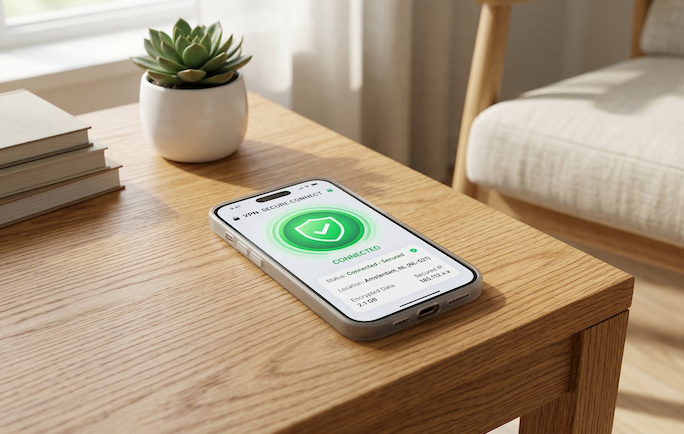
Once the VPN configuration is in place, you will see NordVPN’s main screen with a world map and a prominent “Quick Connect” button. Tap it, and NordVPN will automatically select the fastest available server based on your location and current network conditions. Within seconds, you will see a “Connected” status and a VPN icon will appear in your iPhone’s status bar (next to the Wi-Fi or cellular signal indicator). That icon confirms that all your traffic is now being routed through the encrypted VPN tunnel.
Step 5: Verify your connection
To confirm that the VPN is working correctly, you can check your IP address by visiting a site like whatismyipaddress.com in Safari. Instead of showing your real IP address and location, it should display the VPN server’s IP and the server’s location. You can also check the NordVPN app, which shows your current connection status, the server you are connected to, and your new virtual location.
Essential Settings to Configure on iPhone
Recommended settings overview
| Setting | Recommended Value | Where to Find It | Why It Matters |
|---|---|---|---|
| Protocol | NordLynx | Settings → VPN Protocol | Fastest speeds, best battery life |
| Auto-connect | ON (Wi-Fi and cellular) | Settings → Auto-connect | Automatic protection on every network |
| Kill Switch | ON | Settings → Kill Switch | Blocks internet if VPN disconnects |
| Threat Protection | ON | Settings → Threat Protection | Blocks ads, trackers, malicious sites |
| Dark Web Monitor | ON | Settings → Dark Web Monitor | Alerts if credentials appear in leaks |
NordLynx protocol: Why it matters on iPhone
The VPN protocol is the underlying technology that determines how your data is encrypted and transmitted. NordLynx is NordVPN’s proprietary protocol built on the WireGuard framework, and it is specifically optimized for mobile devices. Compared to older protocols like OpenVPN or IKEv2, NordLynx offers noticeably faster connection speeds, lower latency, and significantly better battery efficiency. The streamlined codebase means less processing power is needed to encrypt and decrypt your data, which directly translates to less battery drain on your iPhone.
On an iPhone, battery life is always a concern, and this is one of the most common reasons people hesitate to use a VPN. With NordLynx, the battery impact is minimal — most users report that running NordVPN with NordLynx all day adds only 2-5% to their total battery consumption. This makes it practical to keep the VPN running 24/7 without worrying about your battery dying before the end of the day.
Auto-connect: Set it and forget it
The auto-connect feature is one of the most important settings to enable on your iPhone. When turned on, NordVPN will automatically establish a VPN connection whenever your iPhone connects to a Wi-Fi network, switches to cellular data, or restarts. This eliminates the possibility of forgetting to activate the VPN — the most common security mistake users make. You can configure auto-connect to activate on all networks, only on Wi-Fi networks, or only on untrusted (non-home) networks.
For the best protection, set auto-connect to activate on both Wi-Fi and cellular connections. This ensures that your traffic is always encrypted, whether you are at home on your own Wi-Fi, connected to a public hotspot at a café, or browsing on cellular data during your commute.
Kill Switch: Your safety net
The Kill Switch is a critical safety feature that blocks all internet traffic if the VPN connection drops unexpectedly. Without a Kill Switch, a momentary VPN disconnection — which can happen during network transitions, signal drops, or server switches — would briefly expose your real IP address and unencrypted traffic. With the Kill Switch enabled, your iPhone simply stops sending any data until the VPN connection is restored, preventing any accidental data leaks.
On iOS, the Kill Switch works at the system level, meaning it protects all apps and background processes, not just your browser. If you are on a phone call via VoIP, downloading a file, or syncing data in the background, the Kill Switch ensures none of that traffic leaks if the VPN briefly disconnects.
Threat Protection: Built-in ad and tracker blocking
NordVPN’s Threat Protection feature adds a layer of security beyond basic VPN encryption. When enabled, it blocks connections to known malicious websites, prevents ads from loading (including ads that may contain malware), and stops web trackers from following your activity across sites. On an iPhone, this works across all apps that connect to the internet, not just Safari. This means fewer intrusive ads in apps, faster page loading times (because ads and trackers are not downloaded), and protection against phishing sites that try to steal your credentials.
Best VPN Options for iPhone Compared
Top providers side by side
| Feature | NordVPN | ExpressVPN | Surfshark |
|---|---|---|---|
| iOS app quality | ⭐ Excellent | ⭐ Excellent | Very good |
| Speed (NordLynx/Lightway) | 90-95% of base speed | 85-92% of base speed | 85-92% of base speed |
| Monthly price (2yr plan) | $3.39/month | $8.32/month | $1.99/month |
| Simultaneous devices | 6 | 8 | Unlimited |
| Server count | 6,400+ in 111 countries | 3,000+ in 105 countries | 3,200+ in 100 countries |
| Kill Switch on iOS | ✅ | ✅ | ✅ |
| Ad/tracker blocking | ✅ Threat Protection | ❌ | ✅ CleanWeb |
| Independent audit | ✅ PwC (multiple times) | ✅ PwC and Cure53 | ✅ Deloitte |
| Specialty servers | Double VPN, Onion over VPN, P2P, Obfuscated | Standard servers only | MultiHop, static IP |
| Money-back guarantee | 30 days | 30 days | 30 days |
Why NordVPN is our top pick for iPhone
While all three providers offer quality iOS apps, NordVPN stands out for several reasons. Its NordLynx protocol delivers the fastest speeds with the lowest battery impact — a critical factor for iPhone users. The Threat Protection feature provides built-in ad and tracker blocking across all apps, not just the browser. NordVPN’s server network of 6,400+ servers in 111 countries is the largest of the three, giving you more options for finding fast, nearby connections. And the specialty servers (Double VPN, Onion over VPN, Obfuscated) give you flexibility for different privacy needs that the other providers do not match.
At $3.39/month on the two-year plan with a full 30-day money-back guarantee, NordVPN also offers excellent value. The combination of speed, security, features, and reliability makes it the best overall VPN for iPhone users.
Understanding How a VPN Works on iPhone
The encryption process explained simply
When you activate NordVPN on your iPhone, the app creates an encrypted tunnel between your device and one of NordVPN’s servers. Every piece of data that leaves your iPhone — whether it is a web page request from Safari, a message from WhatsApp, an email from the Mail app, or a video stream from YouTube — is encrypted before it leaves your device. This encrypted data travels through the tunnel to NordVPN’s server, where it is decrypted and sent to its final destination on the internet. The response follows the same path in reverse: the server encrypts the incoming data and sends it back through the tunnel to your iPhone, where NordVPN decrypts it for the receiving app.
The encryption used by NordLynx (ChaCha20) is so strong that even if someone intercepted the encrypted data in transit, it would take billions of years to crack with current computing technology. This means that even on the most insecure public Wi-Fi network, your data is completely unreadable to anyone who might be monitoring the network.
What your iPhone looks like to websites with a VPN
Without a VPN, every website and online service you access can see your real IP address, which reveals your approximate geographic location (typically accurate to your city), your ISP, and a unique identifier that can be used to track your activity across multiple sites. With NordVPN connected, websites instead see the IP address of the VPN server you are connected to. If you are connected to a server in New York, websites see a New York IP address regardless of where you physically are. This makes it significantly harder for advertisers, data brokers, and other tracking entities to build a profile of your online behavior.
VPN and iPhone’s built-in security features
NordVPN works alongside and complements iPhone’s built-in security features rather than replacing them. iOS’s app sandboxing continues to prevent apps from accessing each other’s data. The Secure Enclave still protects your biometric data and encryption keys. iCloud Keychain still securely stores your passwords. What the VPN adds is network-level protection that iOS does not provide on its own — encryption of all traffic in transit, IP address masking, and protection from network-based attacks. Think of it as adding a security layer that covers the gap between your device’s local security and the open internet.
Using Your VPN on iPhone: Practical Tips
Choosing the right server
For everyday browsing and general privacy, the Quick Connect button is all you need — it automatically selects the fastest server based on your location. However, there are situations where manually choosing a server is useful. If you are traveling abroad and want to access services from your home country, connect to a server in your home country. If you want the absolute fastest speeds for downloading or streaming, try connecting to a server in the same city or region you are physically located in.
Managing VPN on cellular data
Many people wonder whether they should use a VPN on cellular data in addition to Wi-Fi. The answer is yes — while cellular connections are generally more secure than public Wi-Fi, your mobile carrier can still see and log your internet activity. Using a VPN on cellular data keeps your browsing private from your carrier and prevents your real IP address from being exposed to websites and apps. The data overhead of VPN encryption on cellular is minimal — typically around 5-10% additional data usage — and with NordLynx, the speed impact is barely noticeable.
VPN and battery life management
With NordLynx protocol, running NordVPN continuously on your iPhone has a minimal impact on battery life — typically 2-5% additional drain over a full day. However, if you are in a situation where you need to conserve every bit of battery, here are some tips. First, make sure you are using NordLynx rather than OpenVPN, as NordLynx is significantly more battery-efficient. Second, connect to a nearby server rather than one in a distant country, as closer servers require less processing overhead. Third, if you are on a trusted home network and need to save battery, you can temporarily disconnect, though we recommend keeping the VPN active whenever possible.
Split tunneling considerations on iOS
Split tunneling is a feature that lets you choose which apps use the VPN connection and which connect directly to the internet. This can be useful if certain apps do not work well through a VPN or if you want to reduce bandwidth usage for specific activities. On iOS, split tunneling support is more limited than on Android due to Apple’s platform restrictions. NordVPN offers a Trusted Wi-Fi networks feature as an alternative — you can designate your home network as trusted (VPN off) while automatically activating the VPN on all other networks.
VPN and Specific iPhone Activities
VPN and iCloud services
NordVPN works seamlessly with all iCloud services including iCloud Drive, iCloud Photos, iCloud Backup, and iCloud Keychain. When the VPN is active, your iCloud sync traffic is encrypted through the VPN tunnel in addition to Apple’s own encryption, providing double protection for your data in transit. There is no conflict between NordVPN and iCloud — both services function normally when used together. However, if you connect to a VPN server in a different country, some iCloud services may briefly prompt you to verify your identity due to the apparent location change.
VPN and FaceTime / iMessage
FaceTime calls and iMessage conversations work normally through a VPN connection. Both services are already end-to-end encrypted by Apple, so the VPN adds a layer of network-level encryption on top of Apple’s own encryption. This means that even on a completely unsecured public Wi-Fi network, your FaceTime calls and messages are doubly protected. You may notice a very slight increase in call latency (the delay between speaking and being heard) when connected through a VPN, but with NordLynx protocol on a nearby server, this increase is typically imperceptible — often less than 10 milliseconds.
VPN and mobile banking apps
Using a VPN with your banking app is not only safe but actually recommended, especially on public Wi-Fi networks. Your banking app already uses its own encryption (HTTPS/TLS) to protect your financial data, but a VPN adds an additional encryption layer that protects your connection metadata — such as which banking service you are using, when you connect, and how much data you transfer. Some banking apps may flag VPN connections as unusual activity if the VPN server is in a different country than your usual location. If this happens, simply connect to a VPN server in your home country before opening the banking app.
VPN and Apple’s iCloud Private Relay
If you have an iCloud+ subscription, you may have access to Apple’s iCloud Private Relay — a privacy feature that routes Safari traffic through two separate internet relays. You might wonder whether you need both Private Relay and a VPN. The answer is that a VPN like NordVPN provides significantly more comprehensive protection. Private Relay only works in Safari, only on Apple devices, and only in certain countries. NordVPN protects all traffic from all apps, works on all platforms, and gives you full control over your virtual location with servers in 111 countries. When NordVPN is connected, it is recommended to disable Private Relay to avoid routing Safari traffic through both services, which could slow down your browsing unnecessarily.
Troubleshooting Common iPhone VPN Issues
VPN connection problems and solutions
| Problem | Likely Cause | Solution |
|---|---|---|
| VPN won’t connect | Network restrictions or protocol issue | Switch protocol (NordLynx → IKEv2 → OpenVPN), restart app, or try a different server |
| Slow speeds while connected | Distant server or congested server | Use Quick Connect for nearest server, or manually select a closer location |
| Frequent disconnections | Unstable Wi-Fi or aggressive battery management | Switch to a more stable network, disable Low Power Mode temporarily |
| Some apps don’t work with VPN | App detects VPN or conflicts | Try a different server, or check if the app has known VPN compatibility issues |
| Battery drain seems high | Using OpenVPN protocol or distant server | Switch to NordLynx protocol and connect to a nearby server |
| “VPN Configuration” prompt appears | First-time setup requirement | Normal — tap Allow once and it won’t appear again |
| VPN icon disappears from status bar | VPN disconnected | Open NordVPN app and reconnect, or enable auto-connect to prevent this |
What to do if speeds are slow
If you notice that your internet feels slower than usual while connected to NordVPN, there are several steps you can take. First, make sure you are using the NordLynx protocol — it is significantly faster than OpenVPN on iOS. Second, try the Quick Connect button, which automatically selects the fastest available server. If Quick Connect does not improve things, manually try a few servers in your country or a neighboring country. Third, run a speed test both with and without the VPN to determine whether the issue is the VPN or your underlying internet connection. In most cases, NordLynx on a nearby server should deliver 90-95% of your normal speed.
When to contact support
NordVPN offers 24/7 live chat support directly from their website or through the app. If you have tried switching protocols, servers, and restarting the app without success, their support team can diagnose the issue remotely and provide specific guidance for your situation. Before contacting support, note which iOS version you are running, which NordVPN app version you have, and the specific behavior you are experiencing — this helps them resolve the issue faster.
Setting Up NordVPN for Family Members
Helping less tech-savvy family members
If you are setting up NordVPN for a family member who is not particularly comfortable with technology — a parent, grandparent, or child — the key is to configure everything so they never have to think about it. Install the app, sign in with their credentials (or use your subscription if you have device slots available), set the protocol to NordLynx, enable auto-connect on all networks, turn on the Kill Switch, and activate Threat Protection. Then explain just one thing: the VPN icon in the status bar means they are protected. If it ever disappears, open the NordVPN app and tap Quick Connect. With auto-connect enabled, this situation should rarely arise.
Protecting children’s iPhones
For children’s devices, a VPN provides an additional layer of protection beyond Apple’s built-in Screen Time parental controls. NordVPN’s Threat Protection blocks malicious websites and inappropriate ads that children might encounter while browsing, even if those sites are not covered by the device’s content restrictions. The VPN also encrypts all their traffic on school Wi-Fi networks and other public networks where their data might otherwise be exposed. Combined with Screen Time’s content filtering and app restrictions, NordVPN helps create a safer online environment for young users.
Frequently Asked Questions
Does a VPN drain iPhone battery significantly?
With NordLynx protocol, the impact is minimal — most users see only 2-5% additional battery drain over a full day of use. NordLynx is specifically optimized for mobile devices, using a lightweight codebase that requires less processing power than older protocols. If you are using OpenVPN, you may notice more battery consumption; switching to NordLynx will improve this significantly.
Can I use a VPN with cellular data on iPhone?
Yes, and we recommend it. A VPN works on both Wi-Fi and cellular connections, encrypting all traffic regardless of how your iPhone connects to the internet. The additional data usage from VPN encryption is typically 5-10%, and the speed impact with NordLynx is negligible. Using a VPN on cellular keeps your browsing private from your mobile carrier.
Will a VPN slow down my iPhone?
With NordLynx protocol on a nearby server, you will typically retain 90-95% of your base internet speed. For most activities — web browsing, social media, messaging, email, and even HD video streaming — the speed difference is imperceptible. Only if you connect to a very distant server (for example, a server on another continent) might you notice increased latency for real-time activities like video calls.
Is the free VPN in my iPhone settings enough?
iOS has a built-in VPN client that can be configured manually, but it does not include a VPN service — you still need a VPN provider. Some providers offer limited free tiers, but these typically have severe restrictions: data caps (often 500MB-1GB per month), slow speeds, limited server locations, and no advanced features like ad blocking or kill switch. For reliable, fast, full-featured protection, a paid VPN like NordVPN is a much better investment.
Can I use NordVPN on my iPad too?
Yes. Your NordVPN subscription covers up to 6 simultaneous device connections, and there is a dedicated iPad app (the same app adapts to the iPad’s larger screen). You can protect your iPhone, iPad, Mac, and other devices all with a single subscription. The setup process on iPad is identical to the iPhone steps described above.
What happens if my VPN disconnects while I am using my iPhone?
If you have the Kill Switch enabled (which we strongly recommend), your iPhone will immediately stop sending and receiving all internet traffic until the VPN reconnects. This prevents any data from being exposed during the brief disconnection. With auto-connect also enabled, NordVPN will automatically attempt to reconnect within seconds. In practice, most users never notice these brief interruptions — the disconnect and reconnect happen so quickly that it feels seamless. If you do not have the Kill Switch enabled, a disconnection would briefly expose your real IP address and send traffic unencrypted until the VPN reconnects.
Does NordVPN work with Apple Watch?
The Apple Watch does not have a dedicated NordVPN app, but when your Apple Watch is connected to your iPhone via Bluetooth or the same Wi-Fi network, its internet traffic is routed through your iPhone. This means that if NordVPN is active on your iPhone, your Apple Watch’s traffic is also protected through the VPN tunnel. When your Apple Watch uses its own cellular connection (on cellular-capable models), the traffic is not covered by the iPhone’s VPN — this is a limitation of Apple’s watchOS platform that currently cannot be addressed by any VPN provider.
Conclusion
Setting up a VPN on your iPhone is one of the quickest and most impactful things you can do for your digital privacy. With NordVPN, the entire process takes under five minutes: download the app, sign in, allow the VPN configuration, and tap Quick Connect. Once you configure the essential settings — NordLynx protocol for speed, auto-connect for automatic protection, Kill Switch for leak prevention, and Threat Protection for ad and malware blocking — your iPhone is comprehensively protected on every network you connect to. At $3.39/month with a 30-day money-back guarantee, NordVPN gives you peace of mind that your personal data stays private, whether you are at home, at work, or on the go.